


Table of Content

Create a New Project
Follow the below steps to create a new project:
- On the GTT home screen, select the Project tab, and click Create Project (+ icon). This opens Create Project dialog box.
- Select the Empty Template option, enter the Project Name and Description, and the click Create.
A new project is created, and you will be redirected to the Device Designer window.

Create a Device Template
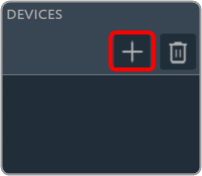
On the Device Designer tab, click on the (+) icon to open the Add Device window.
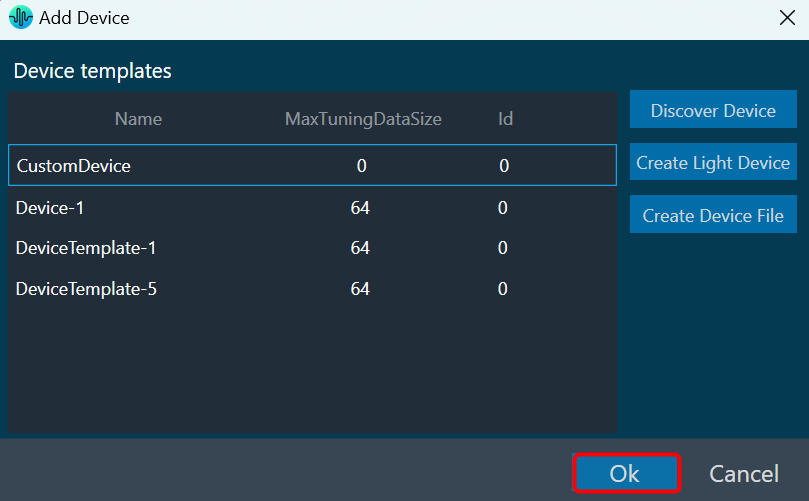
On the Add Device window. You can use any of the following options to create a device template.
- Discover Device: Click on the Discover Device option, if you have the pre-configured device template available.
In case of discovered device, we can make a connection (routing) adhering to defined rules. For more details refers to Device Routing. - Create Light Device: Click on the Create Light Device option, if you want to create a new template.
- Create Device File: Click on the Device file option, if you want to create a device file.
Add Device Template to the Project
There are two types of templates available in the Add Device window: the new ones and the existing ones. Use any of the templates you wish to deploy as per your requirements.
Follow the below steps to add a device template to the project:
- On the Add Device window, select the template from the device template list and click OK.
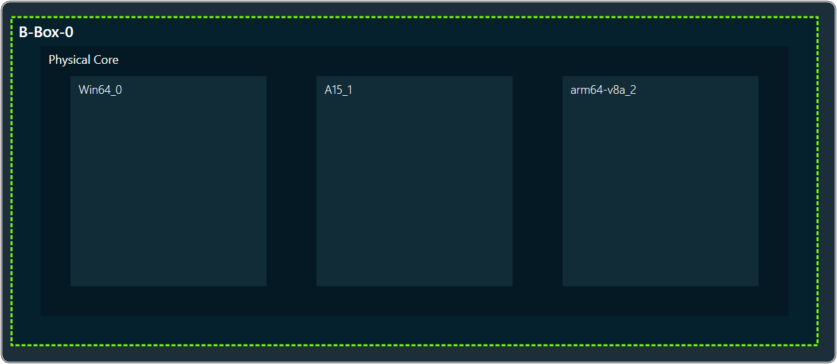
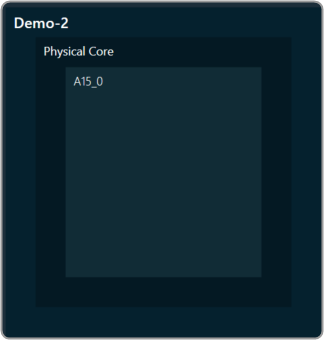
You can see the physical core of the template. The below figure shows a multi-core template and single-core template.
Multi-core template
Single core template
- Drag and drop the Xaf Instance from the Core objects to the physical core window.

This action opens the Configure I/O Channels message box with Ok button preselected. - Enter the Input channel and Output channel number and click OK.

The audio objects inside the signal flow designer are filtered based on the Data Format of the core. For more information related to the Data format of the core, please check the below Create Device Template documentation.If there is a tuning version mismatch between audio objects of signal flow and audio objects in the toolbox, then a warning message pops up showing tuning version differences, and those audio objects are shown in blue color.
Each core object has different properties. For more details refer to the Devices. Once all the properties of the core are verified, click Save to save the changes.
One of the most common uses of GTT is to design the signal flow and tune the signal as desired. The Signal Flow Designer makes it easier to create dynamic signal flow as well as allows you to send audio signals to the amplifier.
In addition, it supports the creation of dynamic state variables for audio blocks present in a flow, as well as the launching of tuning panels (both native and custom).

