


Table of Content

Multi-xAF Library Support
When working with multiple xAF audio library versions (DLL version) in GTT, any new device added to the project will be automatically linked with the default audio library version (DLL version).
If the linking of existing devices with their respective DLLs was done in the “O” version of GTT or if the DLLs were loaded before the project was imported to GTT, those devices will still function with their respective DLLs without any issues.
On the property view of the device instance, you can see the audio library version of the respective device.

Changing Device Audio Library
To change the audio library version of the device:
- Select the device instance in the device view. This opens the property view of the device.
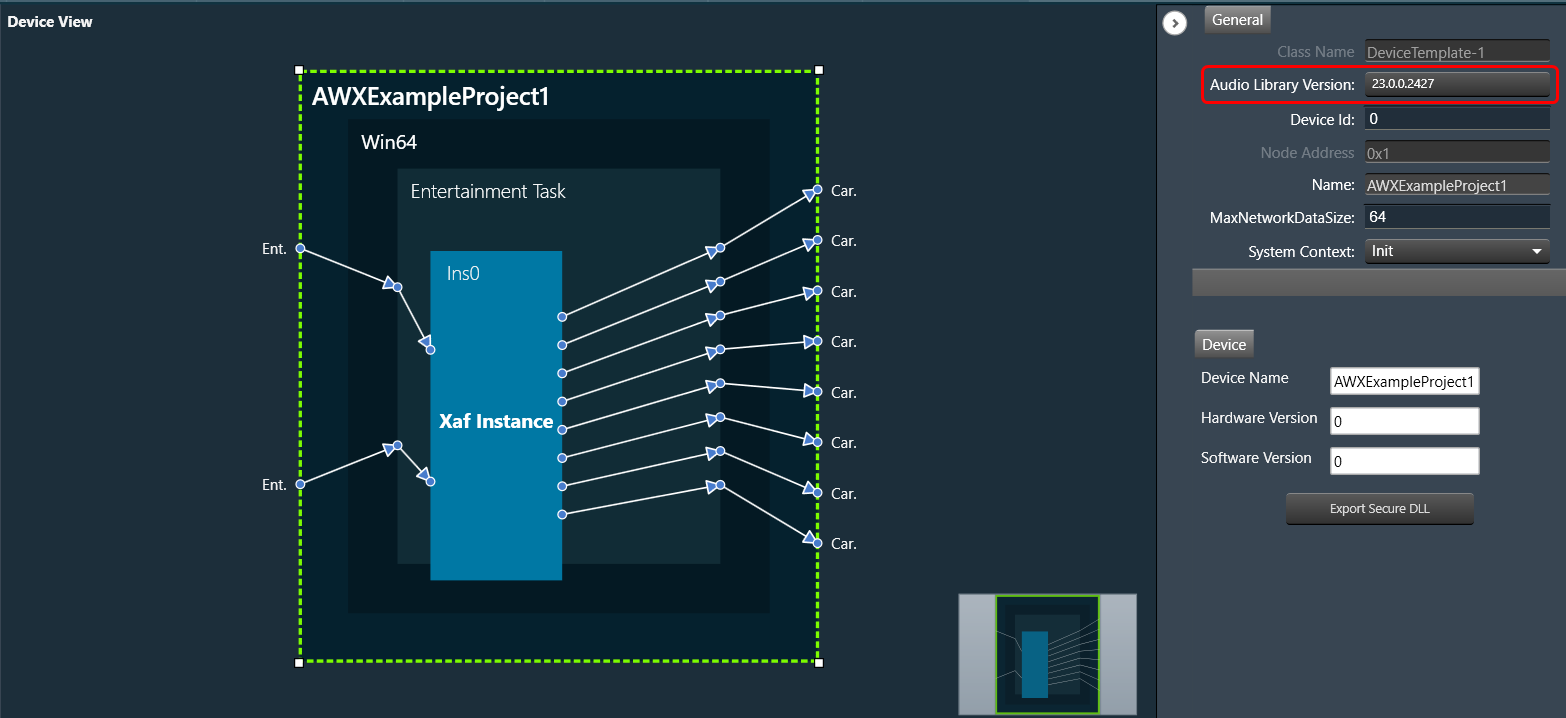
- Click on the Audio Library Version, select the desired DLL version from the drop-down, and click Save.
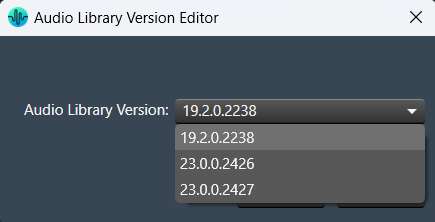
The device will start working with the updated DLL version.
If a device has a signal flow with audio objects created in a previous version, compatible audio objects are automatically upgraded.
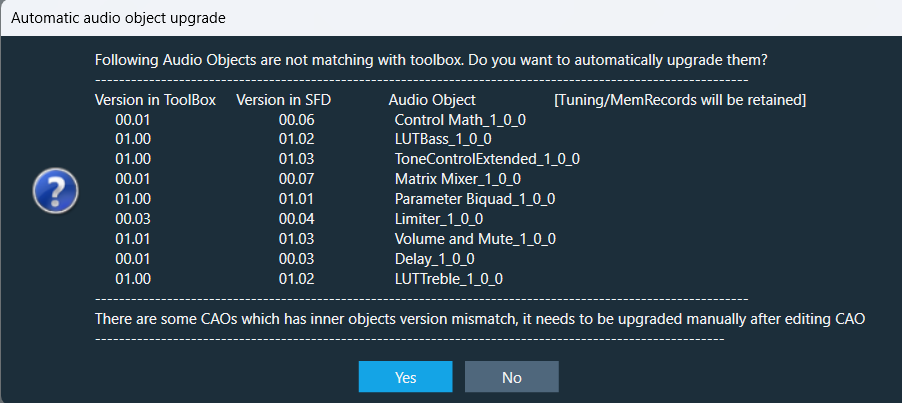
Once you update the DLL version, if any non-compatible audio objects are there, it will be highlighted in blue and the warning displayed in the compiler report.

You can fix the non-compatible audio objects in the signal flow. Right-click on the highlighted audio object and select upgraded audio object from the context menu.

Change of association DLL for one device will not impact other device instance.
xAF Audio Library Use Cases
While importing a project file in GTT, make sure the xAF audio library version is already available in GTT.
- Use Case 1: When you import a project, if the xAF DLL associated with the project is already loaded in the GTT audio library. Regardless of whether the associated DLL is the default library or not, the project will import without error or warning. Later, you can switch to the latest DLL.
- Use Case 2: While importing a project, if the xAF DLL associated with the project is not loaded in the GTT audio library, then the project will be linked to the default xAF DLL in GTT.
When you open the project after importing it, a message will appear. This displays the default audio library of project and details of previous audio library that is associated with the imported project.
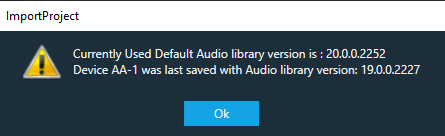
Once you open the Signal Flow Designer of the imported project, the below message will appear every time you open the Signal Flow Designer of the project.
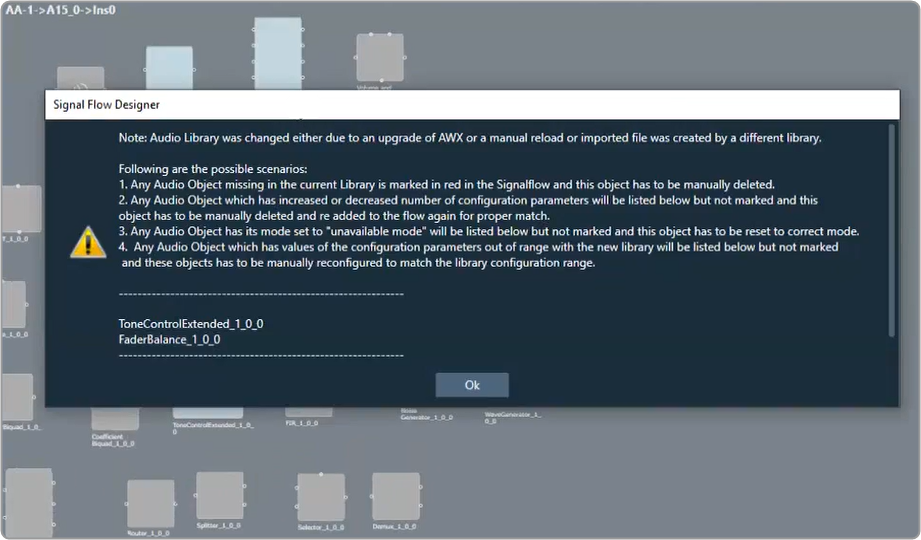
You can get rid of the message by using the methods listed below.
- Once you open the Signal Flow Designer of the project, go to the non-compatible audio objects, which are highlighted in blue. Right-click on the highlighted audio object, select upgraded audio object from the context menu, and save the changes. This will upgrade the non-compatible audio objects in the project.
- The message will not appear if you import the previous DLL (which is associated with the imported project) into the GTT audio library manager.
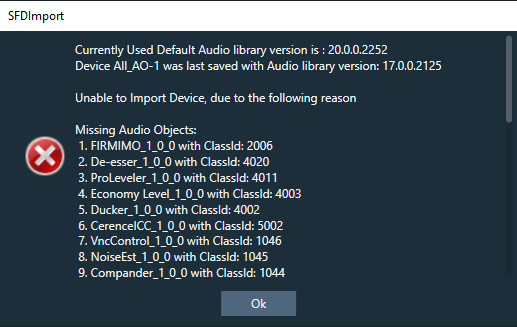
Use Case 3: While importing a project, if the xAF DLL associated with the project is not loaded in GTT audio library and the default xAF DLL is not compatible. An error message will be displayed, and project import will be cancelled.
Use Case 4: After importing a project and switching to a different audio library, you may encounter missing audio objects in the Signal Flow Designer. These missing objects will be highlighted in red, and an error message with a list of the missing audio objects will be displayed. The same error message will also be included in the compiler report.
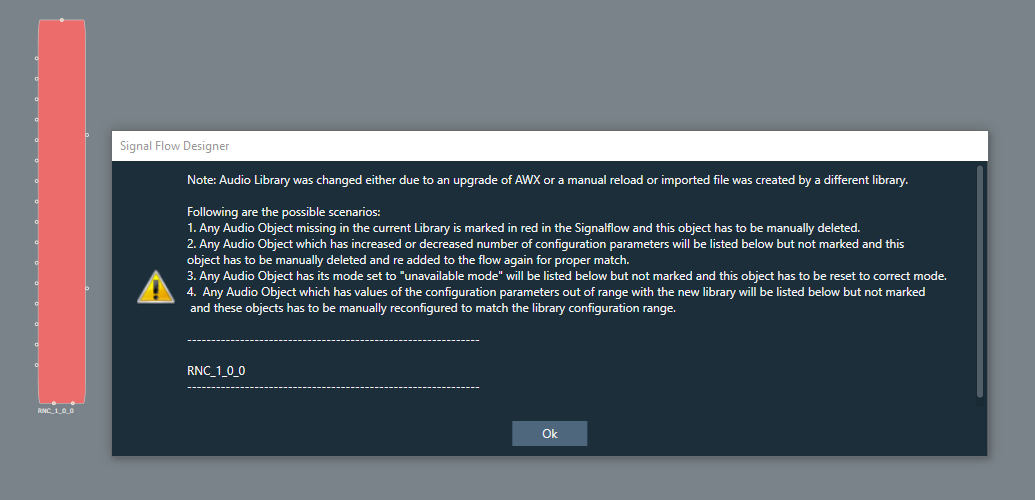
In order to resolve the error, it is necessary to delete the missing audio object from the Signal Flow Designer. Once the missing audio object is removed, the error will be cleared.

