Harman Logo
AUDIOWORX
  • Home
  • Documentation
  • Videos
  • Release Notes
Harman Logo
AUDIOWORX
  • Home
  • Documentation
  • Videos
  • Release Notes
Harman Logo
AUDIOWORX
  • Home
  • Documentation
  • Videos
  • Release Notes
  • Getting Started
  • User Guides
  • Developer Guides
  • Reference Projects

Table of Content

Global Tuning Tool User Guide

  1. About Global Tuning Tool
    1. System Requirements
    2. Global Tuning Tool Workflow
  2. Exploring GTT Workspace
    1. Home Screen
    2. Device Designer Overview
    3. Panel Designer Overview
    4. Parameter Set Overview
  3. Working with GTT Project
    1. Create a New Project
    2. Create a Custom Panel in GTT
    3. Create a Parameter Set in GTT
    4. Custom Device Usage
    5. Multi-xAF Library Support
    6. Configuring Preset Controller
  4. Streaming and Polling
    1. Start Live Streaming
    2. Viewing Streaming Data in Custom Panel
    3. Search Variable
    4. Record Streaming Data
    5. Pause/Play Streaming
    6. FFT for Streaming
    7. Limitations in Streaming

Real Time Analyzer

  1. Introduction
  2. RTA Quick Start Guide
  3. Integrated Virtual Processing
  4. Sound Card Settings
  5. Plugin Host
  6. Analyzer Settings
  7. Generator
  8. RTA Graph Display Settings
  9. Mimo Convolver
  10. Recorder
  11. Routing
  12. RTA IR/Spectrum viewer
  13. Channel Viewer
  14. Real Time data view
  15. RTA Settings ImportExport
  16. Microphone Calibration
  17. Traces
    1. A, B, C Weighting on Captured traces
    2. Smoothing on Captured Traces
    3. Select/ Deselect All Traces
  18. Reboot
  19. Probe Points

Griffin Reference Projects User Guide

  1. Terms and Abbreviations
    1. Multi dll support for CAO
    2. Tuning Panel Compound Audio Object
  2. Purpose Of This Document
    1. Apply tuning to Compound Audio Object Template
    2. Testing New Post 2025
  • Global Tuning Tool User Guide
  • Custom Device Usage

3.4.Custom Device Usage

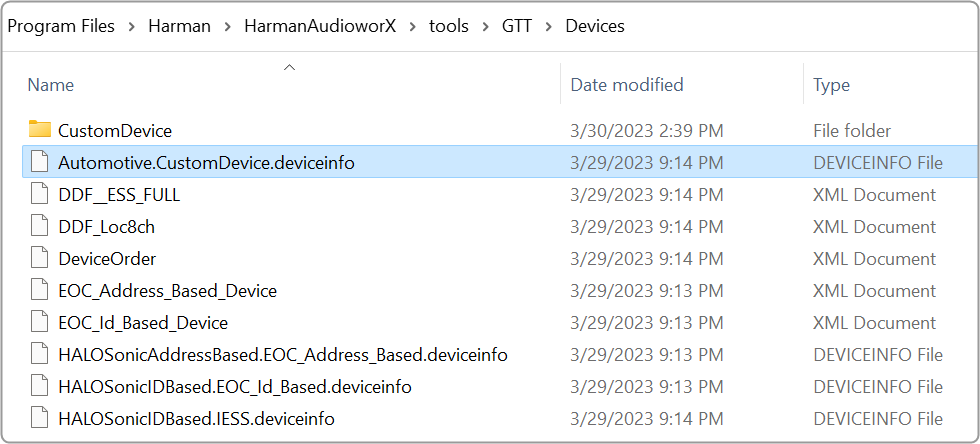
GTT provides an option to use file-based devices. A default custom file with file extension .deviceInfo  available under Devices folder (C:Program FilesHarmanHarmanAudioworXtoolsGTTDevices).
Graphical user interface Description automatically generated with medium confidence

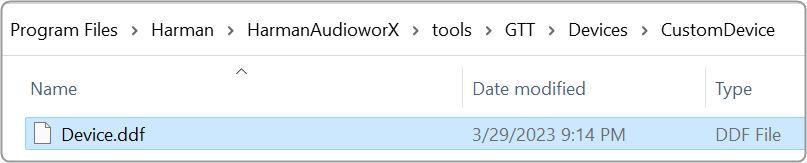
Also, you need a .ddf  file, which you can keep under the Custom Device folder.
Graphical user interface, application, table, Word Description automatically generated

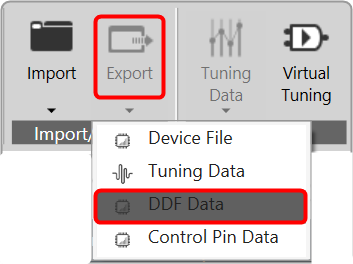
You can create a .ddf  file in GTT. Once you have created a project, click on the Export option, and select  DDF Data. Now browse to C:Program FilesHarmanHarmanAudioworXtoolsGTTDevicesCustomDevice location and save the file.
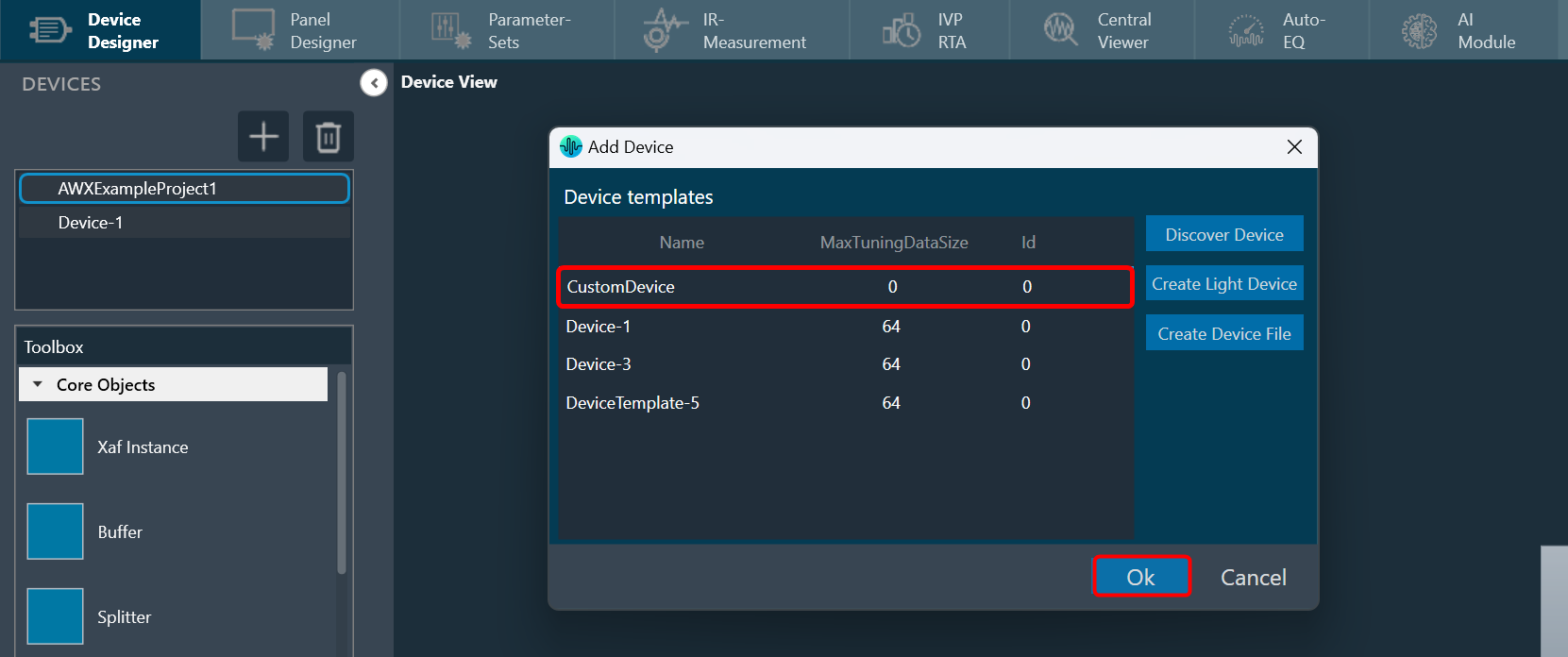
Once the above files are placed in the folder. The custom device will be shown in the Devices view tab in GTT. You can drag-drop this device into the venue explorer. This is similar to any other device created inside GTT.
This file-based device has some limitations. In the normal device (created inside GTT), double-click will open the signal flow designer. But this is not the case with custom devices. This device is not stored in a database. So, the signal flow designer will not be opened.

It is possible to create a custom panel and use the device. However, because it is a file-based device, it is not stored in the GTT database. To reuse the project, export it as a file and then import it whenever needed.

The custom devices created will not be part of the existing project as the devices displayed in the location are retrieved from the GTT database, and custom devices are not stored in the GTT database.

Regardless of the sorting order, the Add Device Dialog always displays the Custom Device as the top option if it is available.

The Custom Device is loaded when the application is launched. Therefore, if any changes are made to the associated .DDF file after launching GTT, it is necessary to relaunch GTT and add the custom device again to ensure the modifications are reflected.

The source for the Custom Device is the .DDF file, which launches the State Variable window. This window displays the audio object definitions that are contained within the associated .DDF file and these definitions can be utilized during panel designing.

Last updated on October 24, 2024
« Search in Parameter SetsMulti-xAF Library Support »
Suggest Edit
  • Careers
  • Contact
  • Sitemap
  • News

© 2024 HARMAN International. All Rights Reserved. Privacy Policy | Cookies | Terms of Use

If you are using a screen reader and are having problems using this website, please call (800) 645-7484 for assistance.