

Table of Content


3.4.Upgrade Audio Object
When you launch signal flow designer by double-clicking on the Framework Instance in device view, GTT validates all audio objects that are mismatching with the toolbox. A report is displayed with the version difference of all audio objects, with the option to auto-upgrade them based on the user’s preferences.
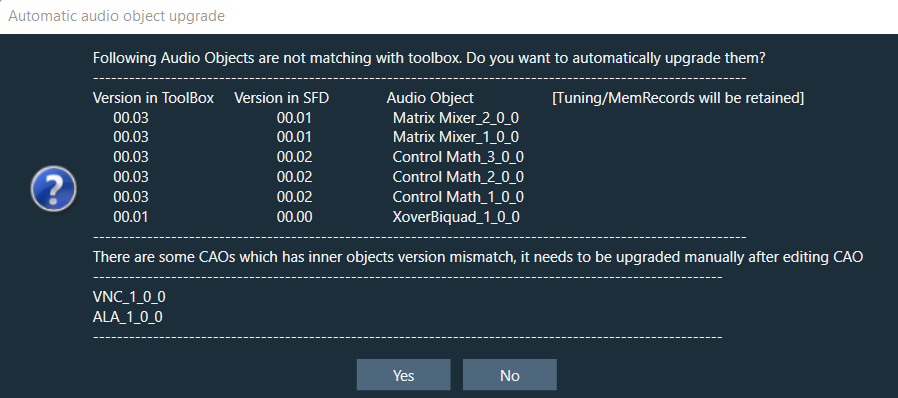 If you selects “Yes”, all audio objects will automatically upgraded to the version equivalent to the toolbox version. If any compound audio objects exist. They must be upgraded manually.
If you select “No”, the signal flow will be launched and you need to manually upgrade them.
If the audio object in the signal flow design becomes out of sync as a result of modification. The compiler report will display a warning message, and the audio objects will be highlighted in blue.
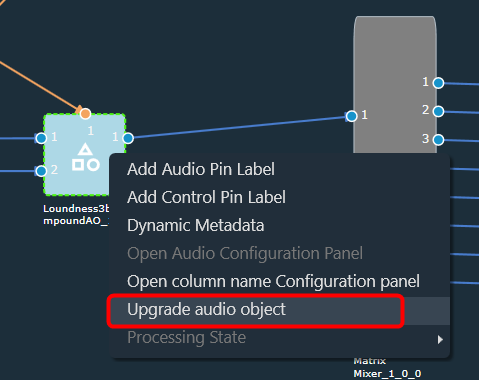
To manually upgrade the audio object to the signal flow designer state; right-click on the highlighted audio object and select “Upgrade Audio Object” from the context menu.
If you selects “Yes”, all audio objects will automatically upgraded to the version equivalent to the toolbox version. If any compound audio objects exist. They must be upgraded manually.
If you select “No”, the signal flow will be launched and you need to manually upgrade them.
If the audio object in the signal flow design becomes out of sync as a result of modification. The compiler report will display a warning message, and the audio objects will be highlighted in blue.
To manually upgrade the audio object to the signal flow designer state; right-click on the highlighted audio object and select “Upgrade Audio Object” from the context menu.
 The following audio object properties will be upgraded:
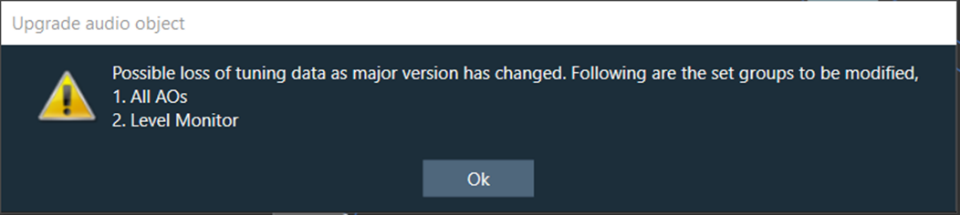 The above message is a warning that there may be a tuning data loss because the audio library changed the major version in the tuning version. The set group(s) to be modified will be listed in the message.
If no set groups are created using the respective audio object, the following message will be shown.
The above message is a warning that there may be a tuning data loss because the audio library changed the major version in the tuning version. The set group(s) to be modified will be listed in the message.
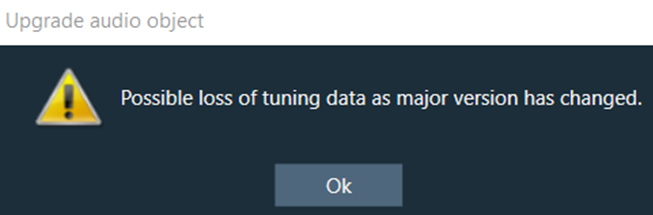
If no set groups are created using the respective audio object, the following message will be shown.
If you selects “Yes”, all audio objects will automatically upgraded to the version equivalent to the toolbox version. If any compound audio objects exist. They must be upgraded manually.
If you select “No”, the signal flow will be launched and you need to manually upgrade them.
If the audio object in the signal flow design becomes out of sync as a result of modification. The compiler report will display a warning message, and the audio objects will be highlighted in blue.
To manually upgrade the audio object to the signal flow designer state; right-click on the highlighted audio object and select “Upgrade Audio Object” from the context menu.
Until N-release, if any audio objects are out of sync with the audio library, GTT will not allow you to save or send the signal flow to a device. To pass the validation, you must manually replace (delete) the current audio objects in the signal flow with the toolbox audio object. All connections and tuning data are lost during this process, which must be redone, resulting in increased effort.
Below image shows the context menu option to choose “Upgrade Audio Object”. When the audio object is upgraded, there will be messages to guide you to the next steps.
The following audio object properties will be upgraded:
- Additional variables (added or deleted)
- Modes (added or deleted)
- Audio object properties like input/output, channels, etc
- Tuning version
The above message is a warning that there may be a tuning data loss because the audio library changed the major version in the tuning version. The set group(s) to be modified will be listed in the message.
If no set groups are created using the respective audio object, the following message will be shown.
Upgrade Compound Audio Object (CAO)
The compound audio object (CAO) in the signal flow can also be upgraded. For minor version changes, only the version number will be updated, but no other changes will be made. However, in the case of a major version change in the toolbox, the internal audio object will be updated to the latest version according to the CAO type in the toolbox. If there is a major version change and the inner objects cannot be automatically upgraded, the CAO will be marked with a blue colour and then you need to upgrade the CAO. For more details about Compound audio object, refer to the Compound audio object.To upgrade Compound audio object, follow the below steps:
- On the Signal Flow Designer window, select the compound audio object under the Compound Audio Object category in the toolbox and click Edit through the context menu. This opens the Compound Audio Object editor, where you can view the signal flow of the internal audio objects.
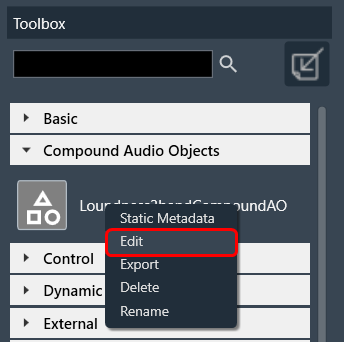
- On the Compound Audio Object editor, right-click on the highlighted audio object, and select Upgrade Audio Object from the context menu.
- Click Save and close the Compound Audio Object editor. After this modification, the CAO in the signal flow design updated and highlighted in blue color.
- Right-click on the highlighted compound audio object, and select Upgrade Audio Object from the context menu. Once the CAO is successfully upgraded, the GTT will notify you.
Upgrading the block ID will not support, if it is changed from normal format to extended format in the DLL.
 Was this helpful?
Help Guide Powered by Documentor