

Table of Content


3.11.Securing Audio Objects
Using “Lock\Unlock” functionality you can secure audio objects. This will help you to safeguard Harman proprietary audio objects during collaboration. This feature encrypts Harman audio objects within the project, preventing unauthorized access by third parties. Additionally, you can hide the tuning data, ensuring sensitive information remains confidential when sharing the projects.
Characteristics of secured audio object:
 Once the lock is applied to any audio object type, following changes will take place in the system.
- Secure audio objects will not allow any of their properties to be edited. The Properties window will be disabled.
- New secure audio objects cannot be added to the signal flow.
- There is no way to remove, duplicate, or copy a secure audio objects.
- Upgrade of secure audio objects is not possible. Error message will be shown to use the valid framework dll.
- Native panel cannot be opened from the signal flow or custom panel.
- If any secure audio object has been configured in custom panel before locking, it will continue to work. However, after locking it is not possible to add secure audio object native panel to custom panel. Secure state variables will be disabled in address assignment window.
- Secure audio objects will be hidden in Sate Variables explorer, MIPS, Memory, Memory Latency, and Streaming window.
- It will not be possible to export the DDF of the device which contains secure audio objects.
- In the XTP viewer, secure audio object’s tuning will not be decoded.
Once the lock is applied to any audio object type, following changes will take place in the system.
- Locked audio objects are distinguishable from other audio objects with lock symbol.
- Lock is on all instances of the particular audio object type across all projects based on the selected audio library version.
- Audio object will be locked in CAO instances. However, CAO types are excluded.
- When “Open Signal Flow for Tuning” is clicked on the Instance, the audio objects will remain locked.
- Audio objects remain locked in CAO instance signal flow
- Undo and Redo history will be cleared from the Signal Flow Design.
- In Parameter sets, Secure audio objects will be masked with the lock icon in the parameter sets window and presets cannot be changed.
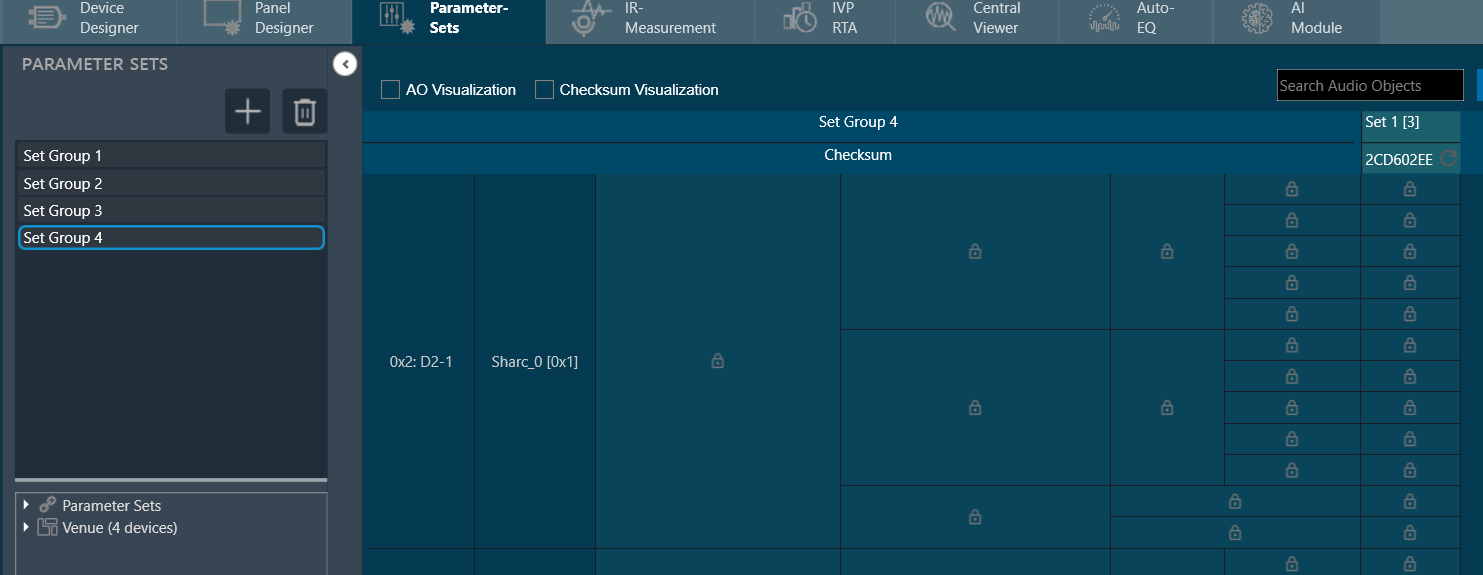
- You can export .set and .setr files from presets and import it back. There will be no change in .set files. However secure audio objects will be excluded in .setr file as it is human readable. You cannot read the tuning data of secure audio objects in .setr files.
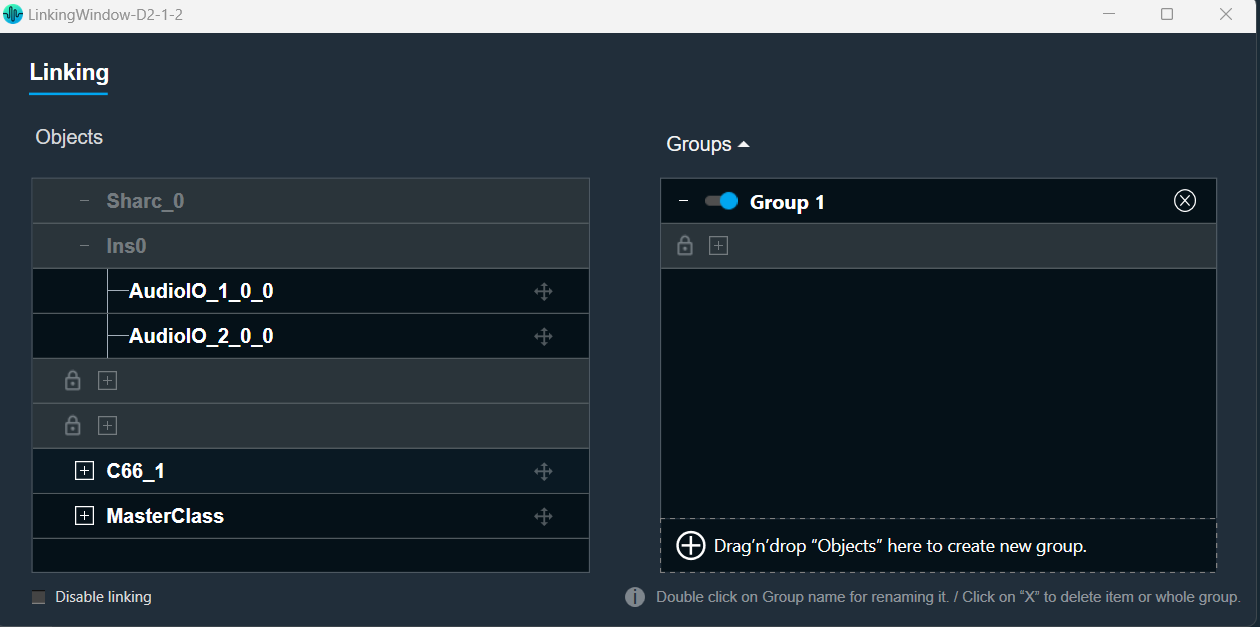
- If the audio object is locked, the secured audio objects will be masked with lock icon in linking window.
After locking the audio object it will be not be possible to add the secure audio objects for linking. The linking continues to function as intended.
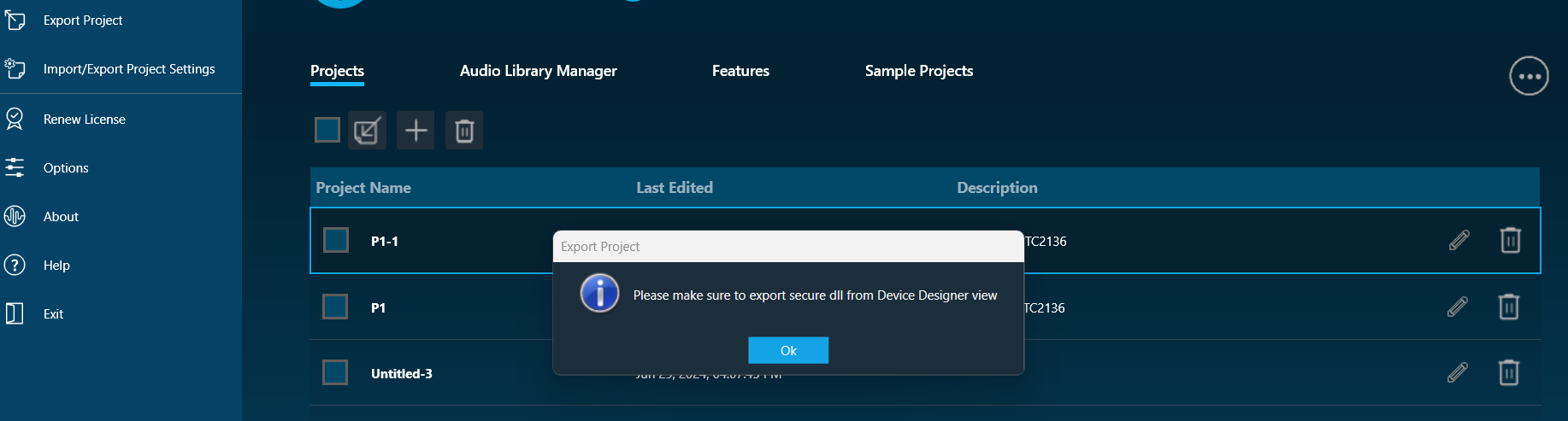
- When you lock audio objects in a project, remember to also export the secure DLL before sharing the project with others. This DLL is required to use the locked audio objects.
On export of a project with secure audio object, a warning message will be displayed to export the secure dll from device designer.
- In the device designer, you can create a Xaf framework dll with the secure audio object information added to it.

- Exporting a secure DLL creates a copy of the specific audio framework version used in the project. This ensures compatibility between the project and the DLL.
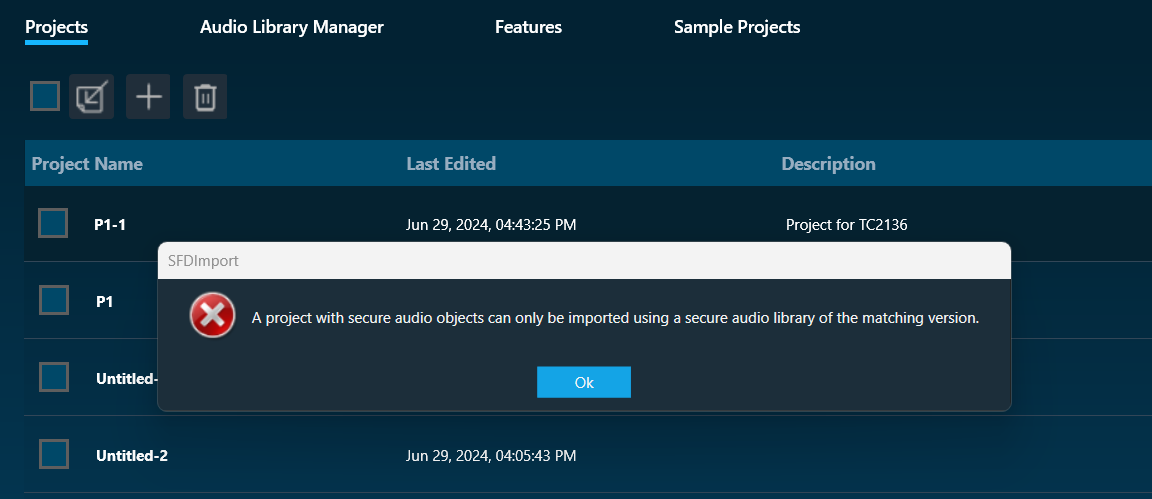
A project containing secure audio objects can only be imported if the corresponding secure DLL is available. This DLL provides the necessary security measures to access and use the locked audio objects.
If the project creator doesn’t export the secure DLL, the other user importing the project might need a password. This password would be required to unlock and use the secure audio objects.
Attempting to import a secure project with an incompatible or unsecured DLL will result in an error message. This message likely informs the other user that the project requires a specific secure DLL for proper functionality.
- The secure dll is same as any other Xaf dll. It can be used for Integrated Virtual Processing (IVP). Also, all file properties of the dll will be retained.
- During project export and import, all audio objects will retain their secure status, including any passwords set on them. When the project is closed or opened, it retains its secure status.
When exporting the project with secure DLLs, it is mandatory to export the secure DLL. If not, the user has to share the password with other user who wants to use the project.
CAO type cannot be secured in W release
 Was this helpful?
Help Guide Powered by Documentor