

Table of Content


3.3.Open column name Configuration Panel
When linked to an object, the Smart LUT feature automates the process of adding column labels semi-automatically rather than manually.
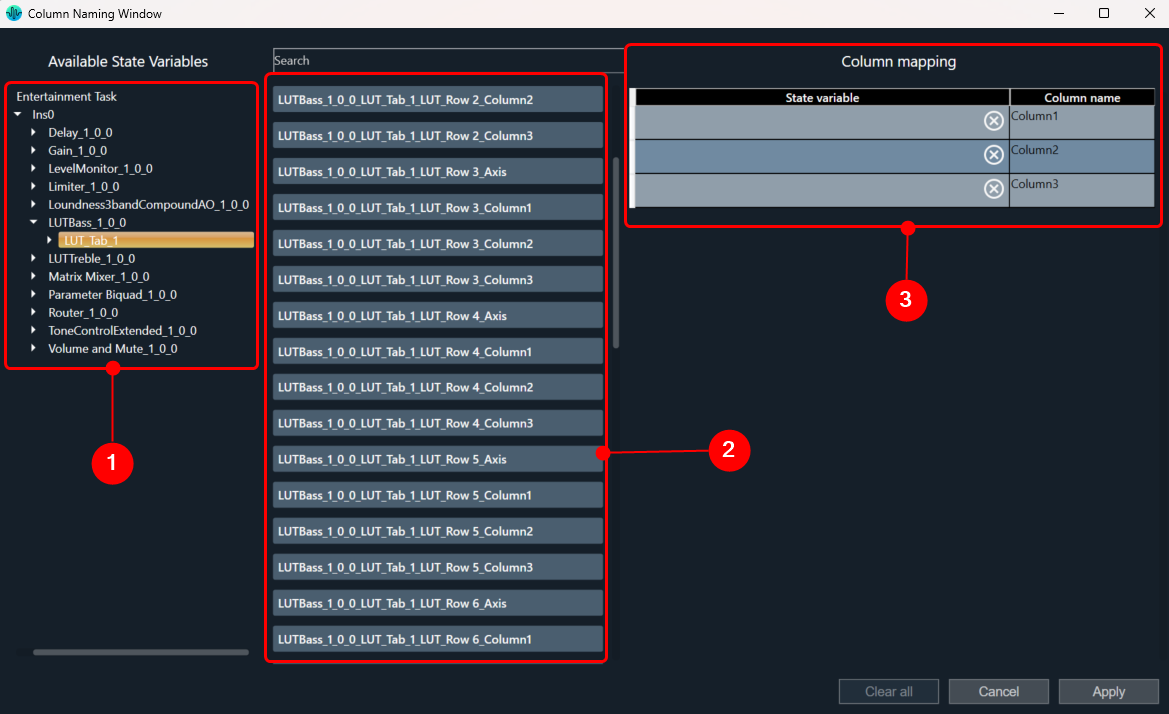
 Following are the components available on Column Naming Window.
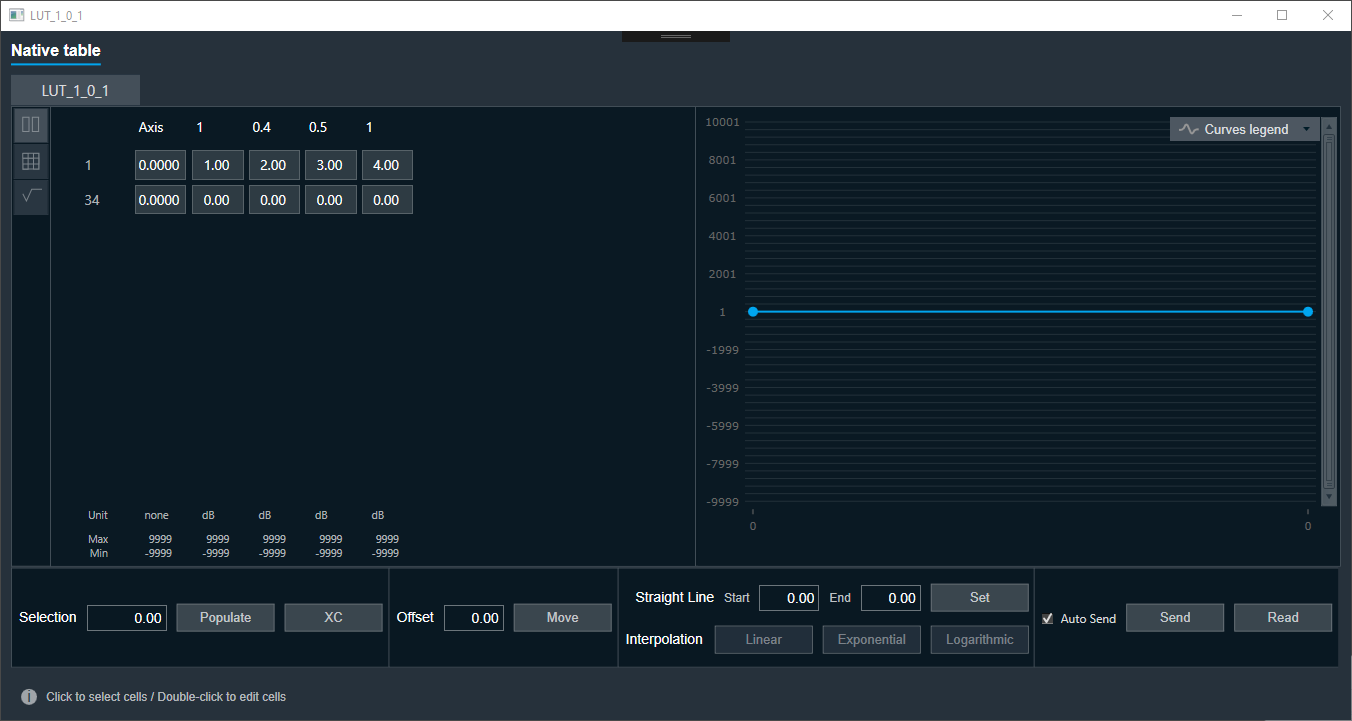 To stop using state variables for naming it is necessary to open the Naming panel, clear all variables and apply.
The “Open column name Configuration Panel” feature only supports LUT audio object.
Launching Column Name Panel
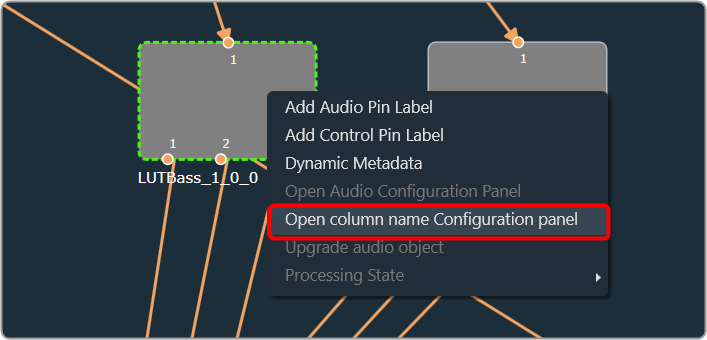
You can use this feature to choose which state variable values should be shown as column headers on the LUT panel. To begin assigning state variables to the columns of the LUT panel, simply open the panel by accessing the context menu of the LUT object in the SFD.SFD must be saved before opening this feature else the state variables will not be available.
Following are the components available on Column Naming Window.
- Tree with all objects
- List with columns details
Selecting State Variable
Each state variable can be assigned to only one column. After assigning to column, it will disappear from available state variables. To assign state variables to a column, select the state variable and drag it to the appropriate column.- To Select: Multiple state variables can be selected by holding the CTRL key or by clicking the ‘Select all’ button above.
- To Move: For moving selected variables, use the SHIFT key to hold and move the variables.
To stop using state variables for naming it is necessary to open the Naming panel, clear all variables and apply.
Workaround for LUT Parameter Sets Unit Problem
This workaround is required for projects which are exported earlier than N+1 release.
- Import earlier exported project and open Signal Flow designer.
- If all LUT objects belong to the same group, double-click on any LUT objects to launch the panel.
- If each LUT object belongs to different groups, then launch the panels separately for each group.
- Close the LUT panels.
- Open Parameter sets view, right-click on column header of red color highlighted set, and click ‘Store’ context menu to get latest set values. You can observe the red highlights are cleared and units are removed for each state variable.
 Was this helpful?
Help Guide Powered by Documentor