

Table of Content


3.5.Change Audio Object Processing State
Audio engineers require a method for conducting A/B testing of signal flows and load balancing, as well as a simpler way to troubleshoot tuning data if errors occur.
You can achieve by using “Processing State” functionality, where you can change the audio object processing state.
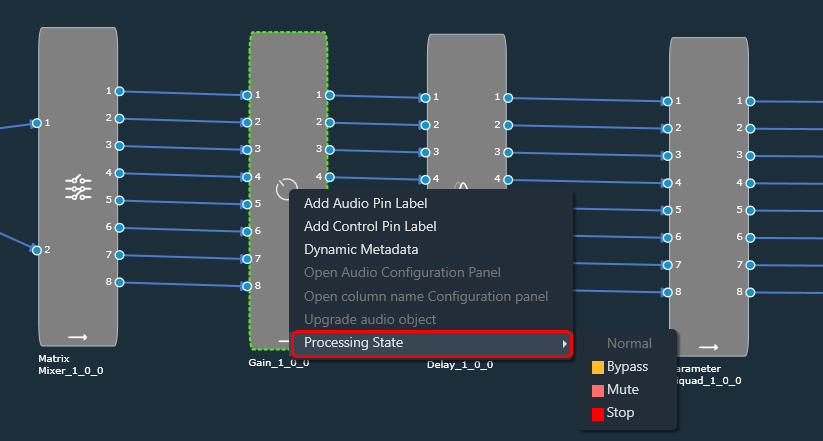 Following are the tasks carried out on the xAF side for each state:
Processing State function only available when device is connected.
These options are available to all audio objects except interface objects like Audio-In, Audio-Out, Control-In, and Control-Out. For the compound audio object, the selected state will be applied to all inner audio objects.
Following are the tasks carried out on the xAF side for each state:
- Normal: Normal operation with update of necessary internal states of the audio object; normal output.
- Bypass: Normal operation with update of necessary internal states of the audio object; input channel buffer data copied to the output channel buffers.
- Mute: Normal operation with update of necessary internal states of the audio object; output channel buffers cleared.
- Stop: Input channel buffer data copied to the output channel buffers (no update of internal states).
The above states are only available through GTT for regular audio objects, and only Normal and Mute states are available for source objects such as Waveform generators.
Audio object which has a state other than ‘Normal’ cannot be tuned through Native Panel.
Ramping
Linear ramping is provided with a ramp-up or ramp-down time of 50 ms. to ensure a smooth transition between states. Ramping is not provided for any transitions involving the Bypass state, and each audio object must support it. For transition between Normal and Stop states, first the output is ramped down from the present state to Mute state and then ramped up to the target state. Every time you connect GTT to device, audio object states from device are read and applied to signal flow designer. If you reboot the device, the processing states of Audio Objects will set to ‘Normal’.In signal flow designer you can reset all audio objects processing state to ‘Normal’ by using the ‘Reset’ button.
 Was this helpful?
Help Guide Powered by Documentor