

Table of Content


5.Tune a Signal Flow
Native panel is one of the important element of the Signal Flow Designer. The native panel has interactive widgets that help to tune complex audio objects easily.
The tuning of a signal flow will be illustrated by showing the tuning effects on virtual devices in IVP RTA. RTA is a multi-channel Real Time Analyzer for audio signals. It provides time and frequency domain analysis tools to measure RMS/peak levels, frequencies, THD, delays, magnitude, and phase responses.
Launch Native Panel
- On the Signal Flow Designer window, double-click on any audio object to open a Native Panel.
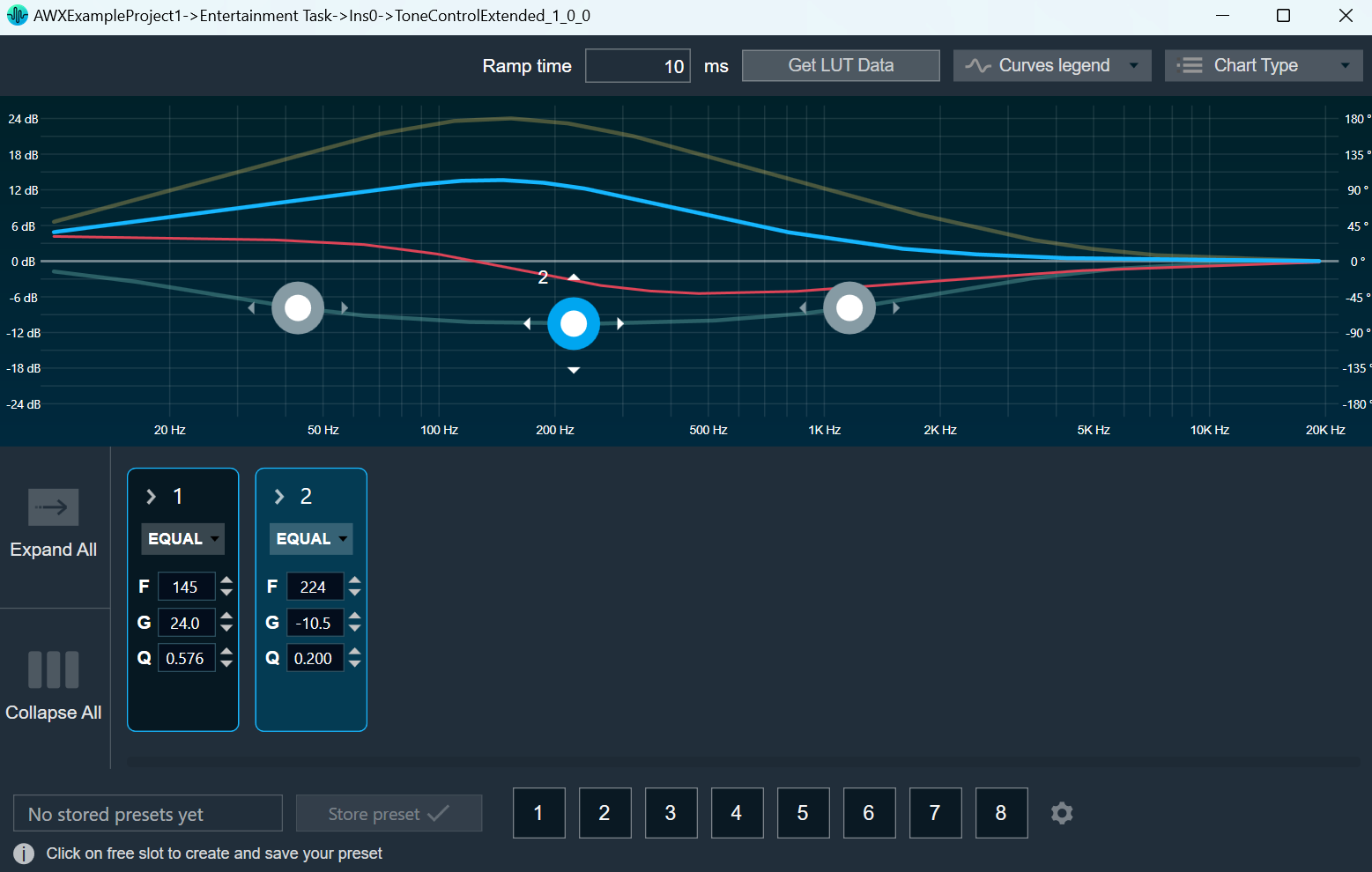
Use the interactive widgets on the Native panel to make the desired changes to audio object properties.When Native Panels is open, if there is any modification to Signal Flow Designer, a popup message will appear asking to save the changes.
When Native Panels is open, you cannot make any changes to the Signal Flow Designer window. But you can open another native panel from the Signal Flow Designer window.
- If the preset bar is present in the panel, select the free preset slot numbers, enter the name of the slot, and click Store preset. This saves and stores the current tuning data to the selected slot.

If you do not enter a name of the slot, then it will take the default named “New Preset”.
You can switch between presets and apply their values to the native panel by simply clicking on them. You can also change the values in the native panel or the preset name after you have clicked it to override the preset.
You can reset the selected preset or all the preset.

- Click Reset Selected to clear the preset that is currently selected.
- Click Reset All to clear every preset in the corresponding native panel.
Visualize a Signal Flow
You can check the tuning effects of the designed audio signal flow on the virtual device in IVP.
For more information, refer to Analyzer and Generator.
Perform Tuning
The audio objects that do not have their own native panel can create a custom panel and link the panel with the respective audio object.
If an audio object doesn’t have its own native panel, you can create a custom panel and link it to the appropriate audio object under the “Available Custom Panels” option.
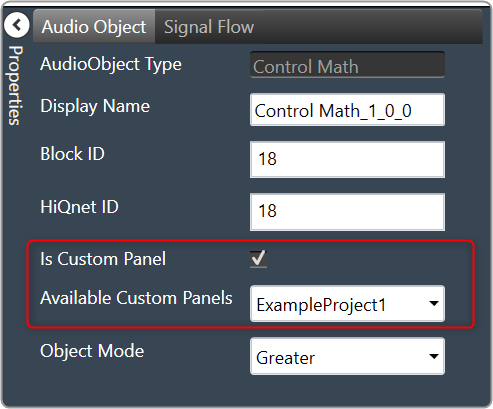
Follow the below steps to view the signal flow performance:
- Go to the IVP tab, start Generator, Analyzer, and Plugin Host.
For more details about Generator, Analyzer, and Plugin Host settings, refer to the Real Time Analyzer User Guide.

- Go to the Device Designer tab, click on Send Signal Flow to send tuning data.
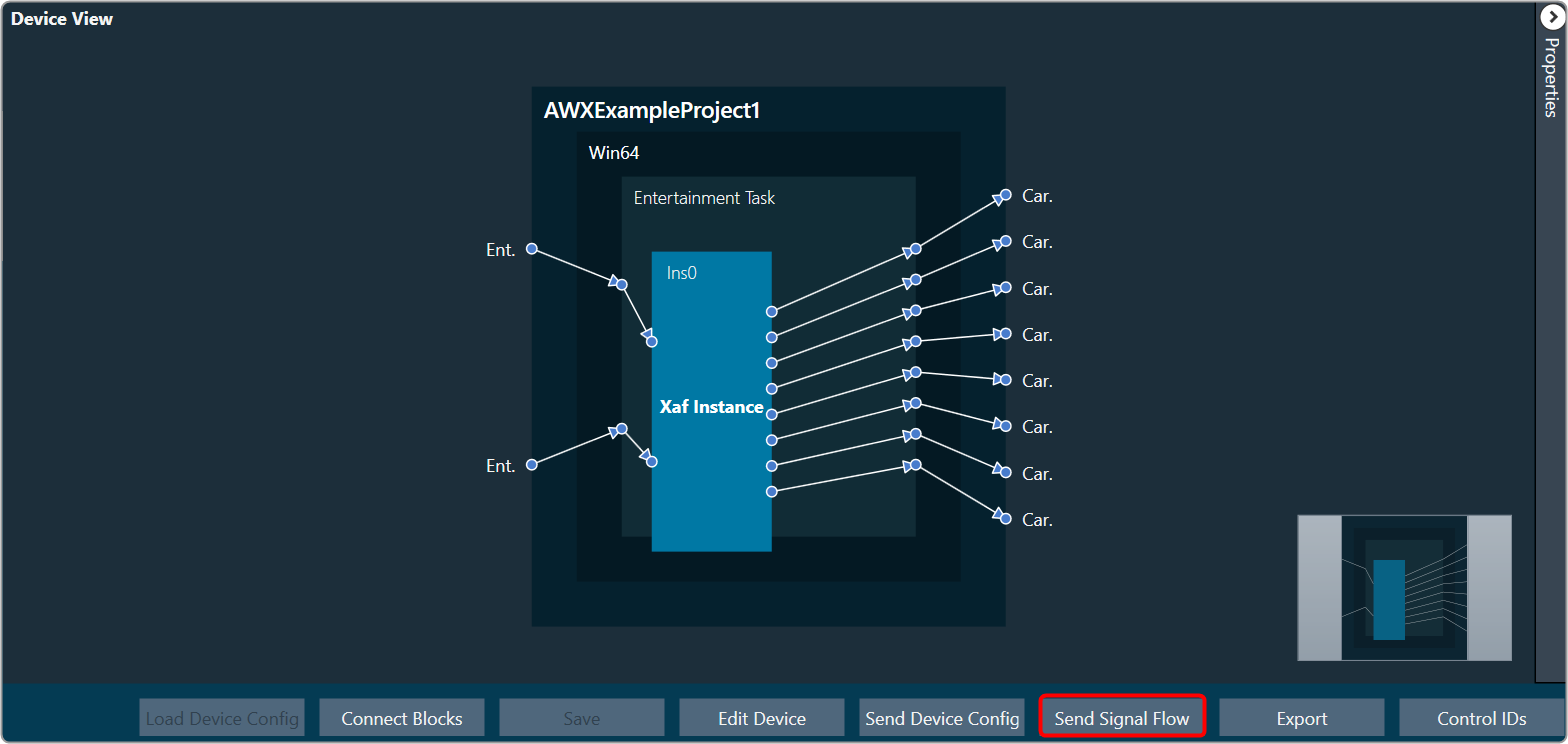
- Open the native panel and go back to the IVP window.
- On the native panel, tune the signals. The signal flow in the IVP tab will change accordingly.

 Was this helpful?