

Table of Content


6.1.Launching Native Panel from Signal Flow Designer
To launch a native panel from the Signal Flow Designer, it is assumed that you have already created a signal flow. For more information on how to create a signal flow, refer to Create a Signal Flow.
Steps to launch Native Panel from Signal Flow Designer
- On the Signal Flow Designer window, double-click on any audio object to open a Native Panel.
Use the interactive widgets on the Native panel to make the desired changes to audio object properties.
If there is any modification to Signal Flow Designer, a popup message will appear asking to save the changes.
When Native Panels is open, you cannot make any changes to the Signal Flow Designer window.
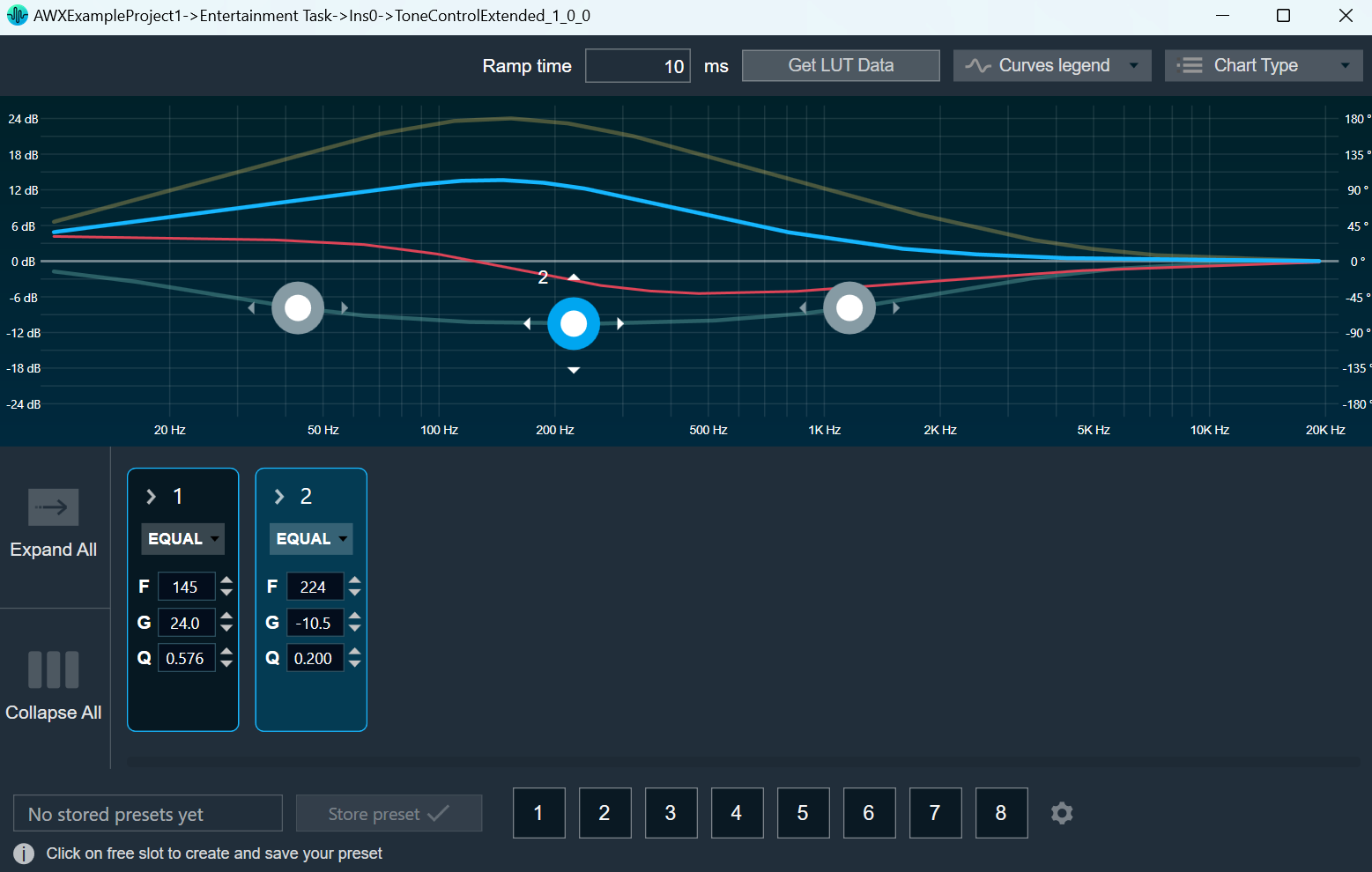
- Select the free preset slot numbers, enter the name of the slot, and click Store preset. This saves and stores the current tuning data to the selected slot.

If you do not enter a name of the slot, then it will take the default named “New Preset”.
You can switch between presets and apply their values to the native panel by simply clicking on them. You can also change the values in the native panel and/or the preset name after you’ve clicked it to override the preset.
 Was this helpful?