Harman Logo
AUDIOWORX
  • Home
  • Documentation
  • Videos
  • Release Notes
Harman Logo
AUDIOWORX
  • Home
  • Documentation
  • Videos
  • Release Notes
Harman Logo
AUDIOWORX
  • Home
  • Documentation
  • Videos
  • Release Notes
  • Getting Started
  • User Guides
  • Developer Guides
  • Reference Projects

Table of Content

Audio Object Developers Guide

  1. Purpose of this Document
    1. Terms and Abbreviations
    2. Requirements
  2. Overview
    1. Audio Object Workflow
    2. Audio Object Class
  3. Audio Object Configuration
    1. Design Time Configuration
    2. Advanced Design Time Configuration
  4. Basic Features and APIs
    1. Constructor
    2. GetSize
    3. Init
    4. Calc
    5. TuneXTP
    6. Control
  5. Advanced Features and APIs
    1. Audio Object Additional Configuration
    2. Audio Object Sub Blocks
    3. Audio Object AO Switch Processing State
    4. Debug and Monitoring
    5. Background Method
  6. Audio object Examples
    1. Example 1 - AwxAudioObjExt.cpp
    2. Example 2 - AwxAudioObjExtToolbox.cpp
    3. Example 3 - AwxAudioObjExtMemRecs.cpp
    4. Example 4 - AwxAudioObjExt.h
    5. Example 5 - AwxAudioObjExtToolbox.h
    6. Example 6 - AwxAudioObjExtMemRecs.h
  7. General Guidelines
    1. Hardware Abstraction
    2. Hardware Abstraction for Header files
    3. Memory Enums
    4. Overlays
  8. Adding external audio object into AudioworX package
    1. Building External AO

Device Description File

  1. Terms and Abbreviations
  2. Purpose of this Document
  3. Root Element
  4. Node Elements
    1. Communication Parameters
    2. Identification of Target Device
  5. Virtual Device
  6. Objects
    1. Object
    2. Definition of a Table Object
    3. Definition of a Biquad Coefficients Object
  7. StateVariables
    1. Common
    2. NumericalSV
    3. EnumSV
    4. FilterTypeSV
    5. FloatArraySV
    6. Float16ArraySV
    7. FixedPoint16ArraySV
    8. StringSV
    9. FixedPointM_NArraySV
  8. TargetValue
    1. Common
    2. Target Value
    3. Block Target Value
  9. Templates
    1. StateVariables
  10. Revision History

Griffin Reference Projects User Guide

  1. Terms and Abbreviations
    1. Multi dll support for CAO
    2. Tuning Panel Compound Audio Object
  2. Purpose Of This Document
    1. Apply tuning to Compound Audio Object Template
    2. Testing New Post 2025
  • Audio Object Developers Guide
  • Building External AO

8.1.Building External AO

Prerequisites

1. Developer should generate the corresponding libraries before starting the build process execution. Otherwise, there will be errors when executing the batch file Build.bat:
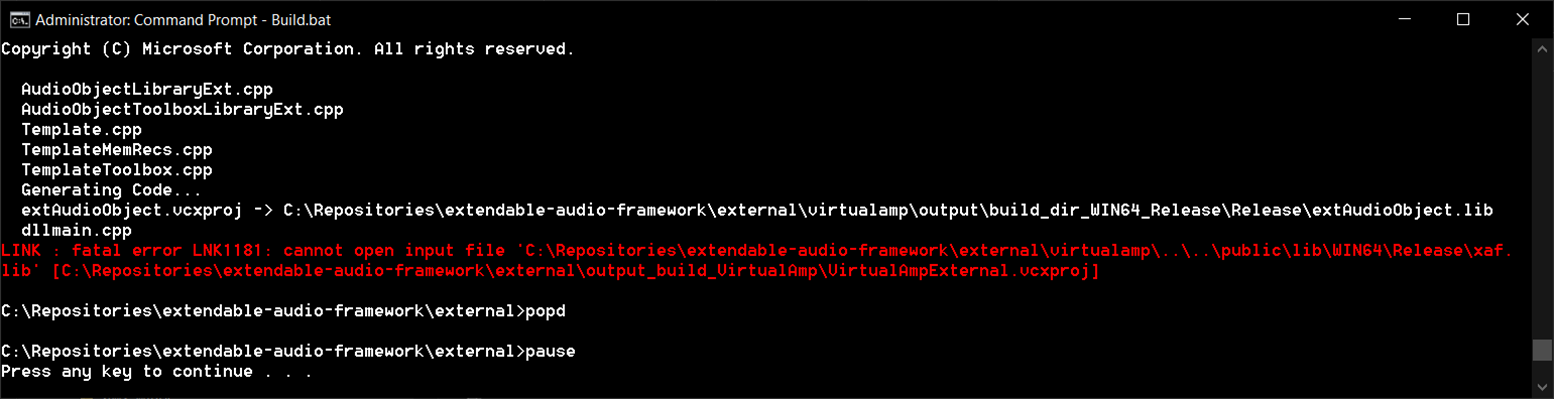
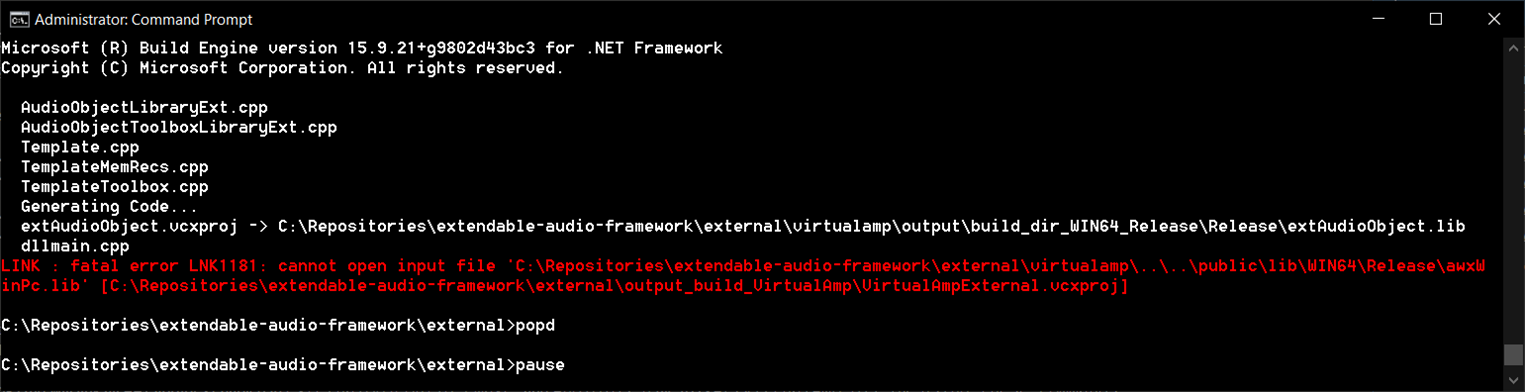
For generating xAF libraries:

python build.py --platform=WinPc --target=Win64 --program=allExtObjects --profile=Release

For generating AWX VirtualAmp:

python build.py --target=Win64 --program=virtualAmp --profile=Release --group=all

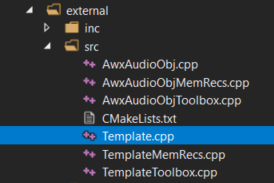
2.  Place the the external audio object’s source code under externalsrc
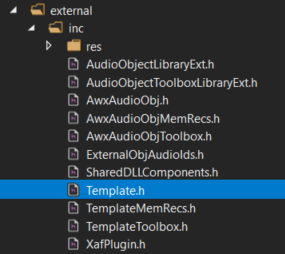
3. Place the external audio object header file under externalinc .  The header file name should be equal to the external audio object class name. For example, if the audio object name is CTemplate, the header file name should be Template.h.
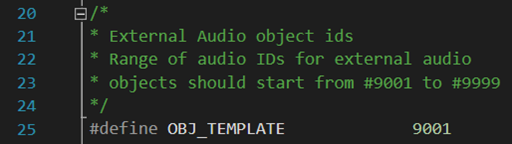
4.  Make sure the external audio object’s pre-processor macro is defined in file externalincExternalObjAudioIds.h. The name should be OBJ_”header file name” and the value should be in the range between 9002 and 9999.

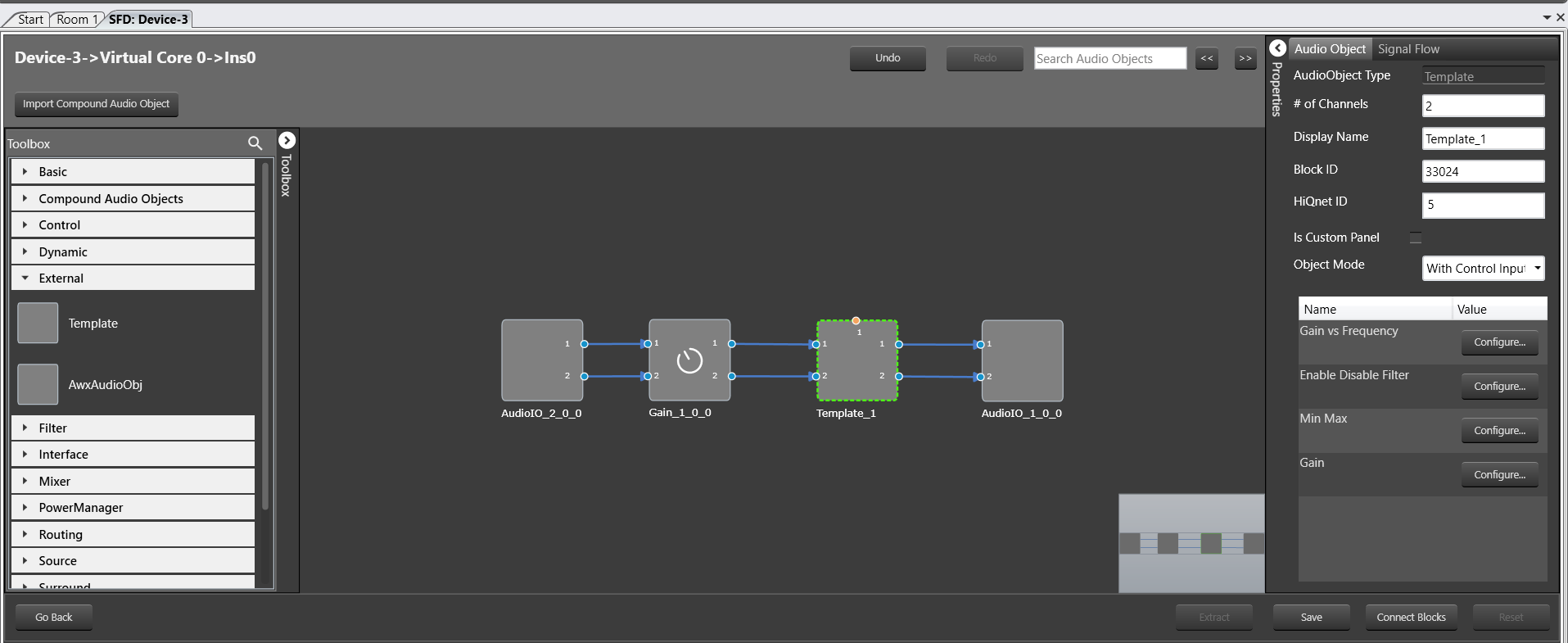
E.g. Audio Object Template ID:
5. If additional libraries need to be linked, add them in the file CmakeLists.txt located in:

extendable-audio-frameworkexternalsrc

Steps for building Audio Object Template

1. Open a command prompt window in Admin mode.

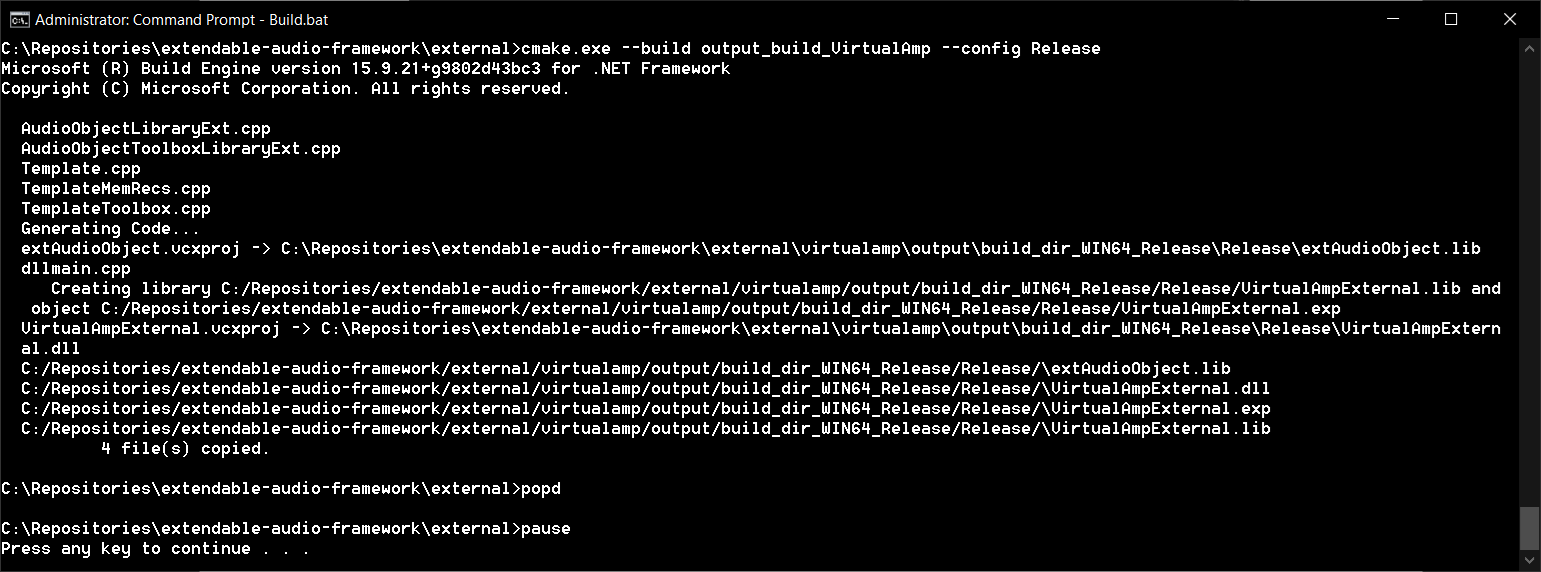
2. Execute the batch file Build.bat

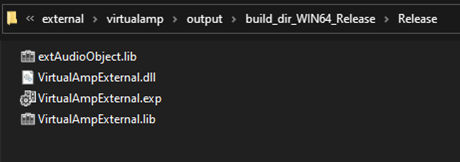
3. After the build process is complete, the corresponding VirtualAmpExternal.dll file will be available at the path externalvirtualampoutputbuild_dir_WIN64_ReleaseRelease.
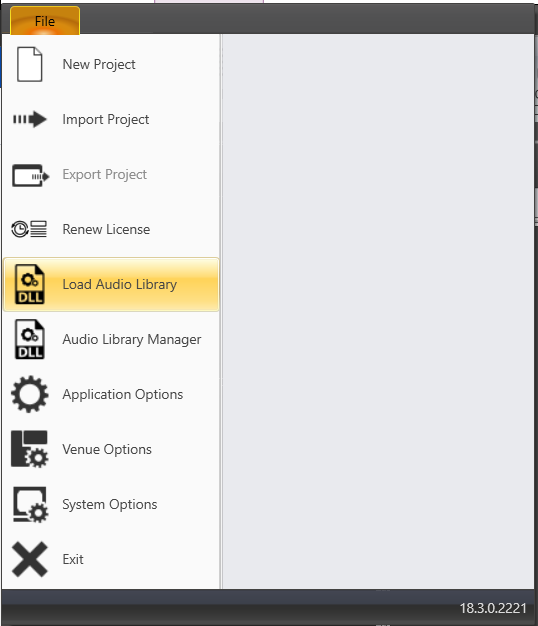
4. The generated .dll file can be imported as an audio library into GTT to update the toolbox with the newly added audio object(s).
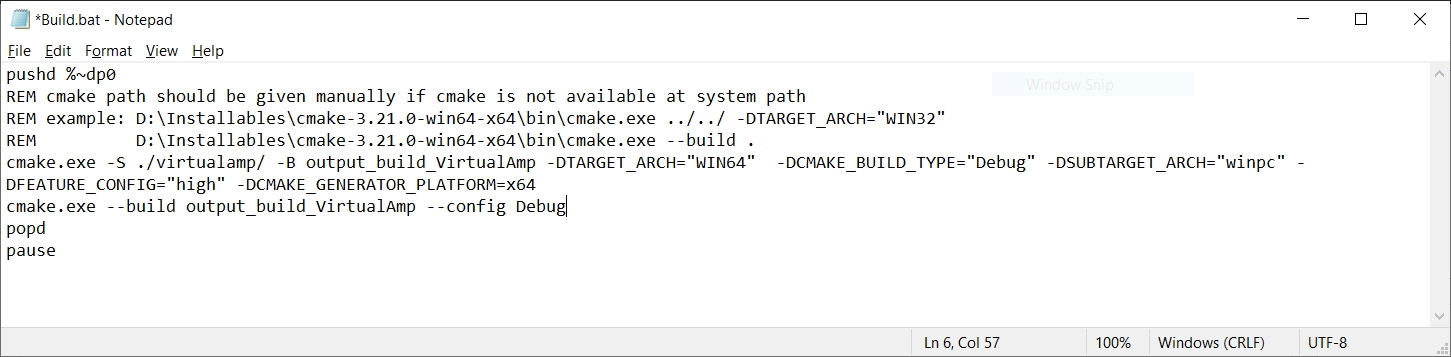
If the developer needs to use debug build mode to make sure everything is working as expected, the file Build.bat can be modified accordingly by changing -DCMAKE_BUILD_TYPE=”Release” to -DCMAKE_BUILD_TYPE=”Debug” and –config Release to –config Debug.
 

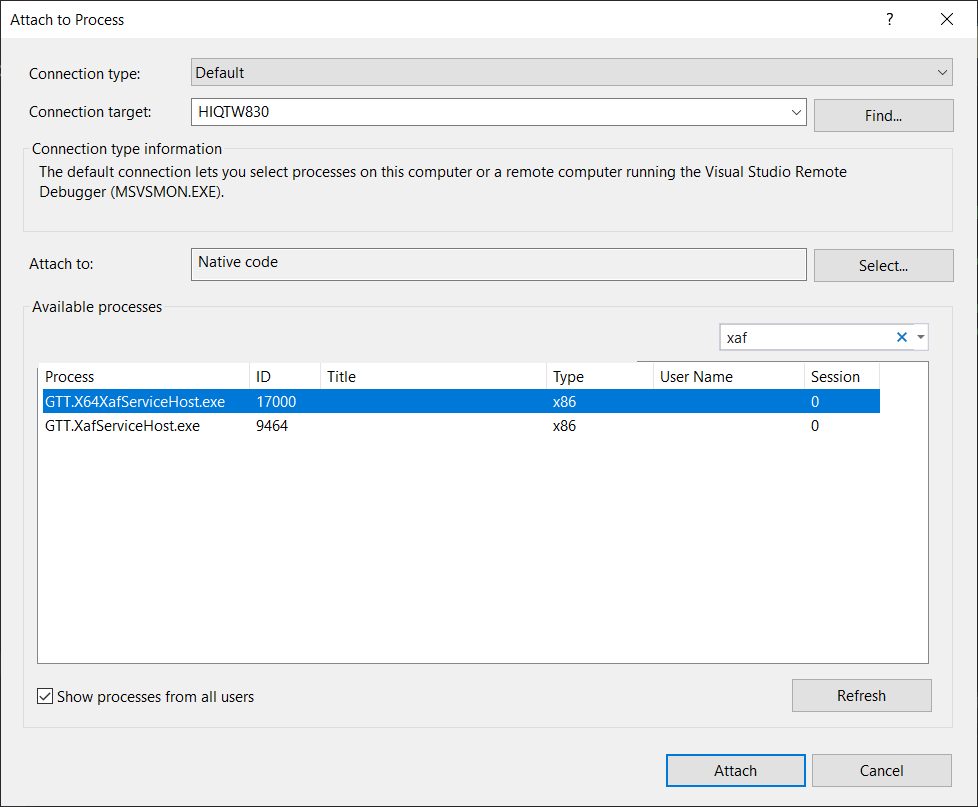
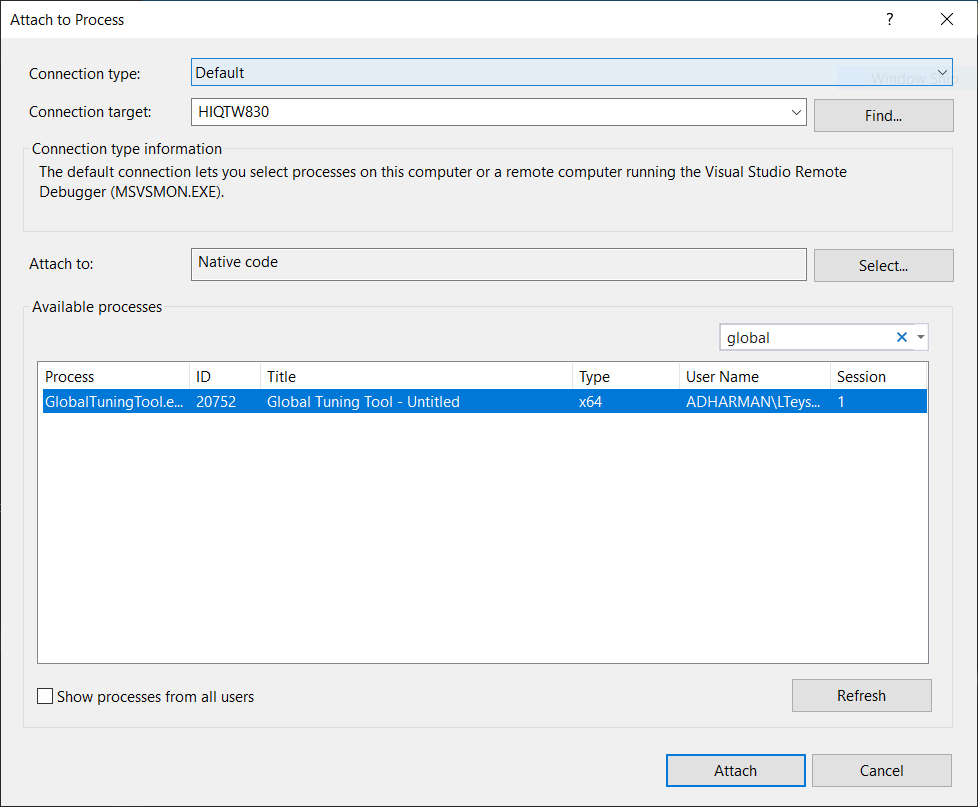
To debug the audio object in Visual Studio, the developer has to select the option Debug->Attach to Process… Then, select Attach to: Native code. Finally, filter out the desired process:
– Toolbox:
– Calc function and tuning:
Last updated on October 24, 2024
« Adding external audio object into AudioworX package
Help Guide Powered by Documentor
Suggest Edit
  • Careers
  • Contact
  • Sitemap
  • News

© 2024 HARMAN International. All Rights Reserved. Privacy Policy | Cookies | Terms of Use

If you are using a screen reader and are having problems using this website, please call (800) 645-7484 for assistance.